How to Read an Internet Speed Test Correctly
This guide explains each result in plain language, shows how to run a proper test, and helps you decide whether your speed is actually a problem.
Quick Answer: What Each Speed Test Number Means
| Result | What it measures | Why it matters |
Download speed (Mbps) | How fast data comes to your device | Streaming, browsing, downloads |
Upload speed (Mbps) | How fast data leaves your device | Video calls, uploads, live streaming, cloud backup |
Ping or latency (ms) | Time for a signal to reach a server and return | Gaming, calls, how “snappy” pages feel |
Jitter (ms) | How much ping changes from moment to moment | Call and video quality |
Packet loss (%) | Share of data that fails to arrive | Stuttering, dropped calls, freezing video |
Download Speed: The Number Most People Look At
Mbps is not MBps. Internet plans use megabits per second (Mbps). File sizes use megabytes (MB). There are 8 bits in a byte, so to estimate download time, divide your Mbps by 8. A 100 Mbps connection moves at most about 12.5 MB of data per second. If you want a deeper refresher, see our guide to what Mbps means.
Upload Speed: Often Ignored, Often Important
- Join a video call or online class
- Send large files or photos
- Back up to the cloud
- Go live on social media
If you work from home or create content, check upload speed as carefully as download speed.
Ping (Latency): How Quickly the Connection Responds
| Ping | How it usually feels |
| Under 20 ms | Excellent, great for gaming and calls |
| 20 to 50 ms | Good for almost everything |
| 50 to 100 ms | Fine for browsing and streaming, noticeable in fast games |
| Over 100 ms | Laggy for gaming and video calls |
Ping depends on distance to the test server and the quality of your network. It is separate from speed: a fast connection can still have a high ping.
Jitter: Why Calls Break Up on a “Fast” Connection
Jitter is the variation in ping. If your ping bounces between 15 ms and 150 ms, calls and games feel unstable even when download speed looks great. Low, steady jitter is the goal. Our full explainer on internet jitter covers causes and fixes.
Packet Loss: The Quiet Problem
Packet loss means some data never arrives and has to be resent. Ideally it is 0%. Even small, repeated loss can cause stuttering video, robotic voices or sudden freezes. Not every speed test shows it, but if your calls break up while speeds look fine, it is worth checking.
How to Run a Speed Test the Right Way
- Use a cable if you can. Connect your laptop to the router with an Ethernet cable. WiFi adds its own limits, which can hide your real connection speed.
- Close everything else. Pause downloads, streaming, cloud backups and updates on all devices.
- Use one device. Disconnect other devices from WiFi or ask others to pause use while you test.
- Turn off VPNs. A VPN can reduce your speed and change the server location. See our guide to VPNs at home.
- Pick a nearby server. A close server gives a more accurate reading of your connection. A far server will show lower speed and higher ping.
- Test three times. Take the average, and ignore a result that is far from the others.
- Test at different times. Try once in the morning and once in the evening. Speeds often vary, as explained in why WiFi is slow at night.
- Record the results. Write down the date, time, wired or WiFi, download, upload, ping and jitter.
Wired vs WiFi Results: Why They Differ
- Wired result close to your plan: your connection is healthy.
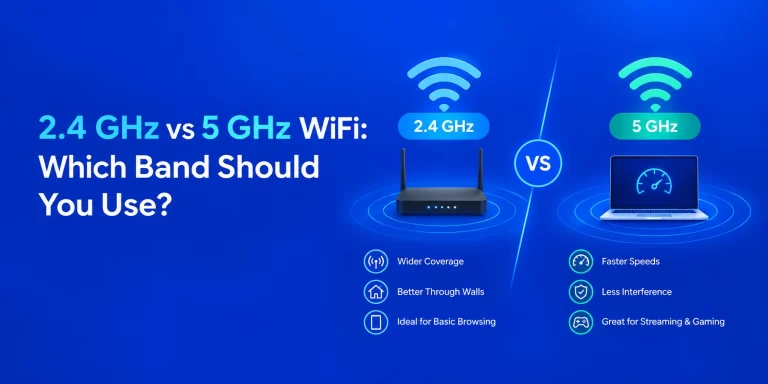
- WiFi result much lower than wired: the cause is your WiFi, such as distance, walls, interference or the wrong band. See 2.4 GHz vs 5 GHz WiFi and our router placement guide.
- Both low: the issue may be the line, the router or the provider side.
What Result Should You Expect?
On WiFi, expect lower numbers, and understand that an older phone or laptop may not reach your plan speed at all.
Why Your Speed Test Result Might Be Low
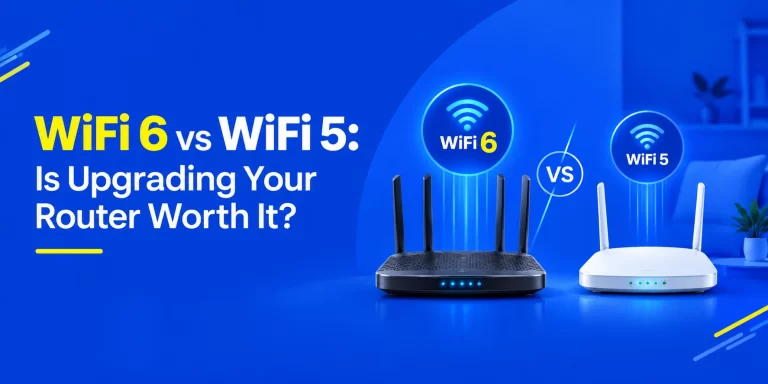
- The device is the limit. Older phones and laptops have slower WiFi chips or lack a gigabit port. See WiFi 6 vs WiFi 5.
- The cable or port is the limit. On faster plans, you need a gigabit-capable router port and a good-quality Ethernet cable. Very old cables can cap speed.
- Too many devices are active. Background updates and streaming eat bandwidth.
- The router is old or poorly placed. Update it with our router firmware guide.
- The test server is far or busy. Try another server.
- A data limit has been reached. Some plans slow down after a limit. See fair usage policy.
How to Tell If Your Speed Is Good Enough
| If you do this | Watch these numbers most |
| Stream video | Download speed |
| Work from home and take video calls | Upload, ping, jitter |
| Play online games | Ping, jitter, packet loss |
| Upload videos or back up files | Upload speed |
| Run a smart home or cameras | Stability and upload |
A moderate plan with low ping and steady jitter can feel better than a very fast plan with unstable results. For gaming needs in particular, see our guide to the best broadband for online gaming in Punjab.
Common Speed Test Mistakes
- Testing over WiFi from the farthest room
- Testing while someone is streaming or downloading
- Testing once and drawing a conclusion
- Comparing your result with a friend’s different plan
- Ignoring upload and ping
- Leaving a VPN on
When to Contact Your Provider
Contact customer care if wired tests are consistently far below your plan at different times of day, after you have restarted the router and used a good cable. Share your results with the date, time, test type (wired or WiFi), and the download, upload, ping and jitter values. You can reach the team on the contact page.
Frequently Asked Questions
What is a good internet speed test result?
Why is my speed test lower than my plan speed?
What is a good ping for gaming?
Is upload speed as important as download speed?
Why do my speed tests change every time?
Does WiFi or cable give a more accurate test?
Do I need to worry about packet loss?
If calls and video stutter or drop, yes. Any steady packet loss is worth investigating.
Is Your Plan Right for the Way You Use the Internet?
- Compare fiber broadband plans
- Apply for a new connection
- Prefer a call? Give a missed call to 1800-137-1234 for a new connection.